PowerShell activation not working is almost always explained by the error code Windows returns. The licensing service reports a specific hexadecimal value for each failure, and that value points to a permission issue, a key that does not match the edition, a network problem or a license that is no longer valid. Reading the code carefully is the fastest route to a working fix.
Start with the Basics
Before chasing a specific error, confirm the environment is ready. Many failed attempts come from a non-elevated window, a missing internet connection or an incorrect date and time setting, all of which are quick to check.
- The PowerShell title bar begins with Administrator
- The device can reach the internet or the company network
- Date, time and time zone are correct in Settings
- The Software Protection service is not disabled
Check the service with Get-Service sppsvc. Its startup type is normally automatic with delayed start, and Windows starts it on demand when licensing tasks run.
Access Denied: 0x80070005
This code means the command did not have permission to change licensing data. It appears when slmgr /ipk, /ato or /upk runs in a standard window. Close the window, open PowerShell with Run as administrator and repeat the command.
On managed devices, security software or policy can also block licensing changes. In that case, contact the administrator who manages the device instead of trying workarounds.
Invalid or Mismatched Key Errors
Several codes indicate a problem with the key itself rather than the device. These usually appear right after slmgr /ipk or during slmgr /ato.
| Error code | Meaning | Typical fix |
|---|---|---|
| 0xC004F050 | The product key is invalid | Retype the key carefully or confirm it is for this product |
| 0xC004F069 | Product SKU not found | Use a key that matches the installed edition |
| 0xC004C003 | The activation server reported the key is blocked | Obtain a valid key from Microsoft or an authorized seller |
| 0xC004C008 | The key has reached its activation limit | Contact the key provider or Microsoft support |
Checking the Edition
Run (Get-CimInstance Win32_OperatingSystem).Caption to see the installed edition. A Home key cannot activate Pro, and an Enterprise volume key will not activate a retail Home installation.
KMS Connection Errors
Devices using a volume KMS client key look for an organization KMS host. When none is reachable, activation fails with codes that mention the Key Management Service or DNS.
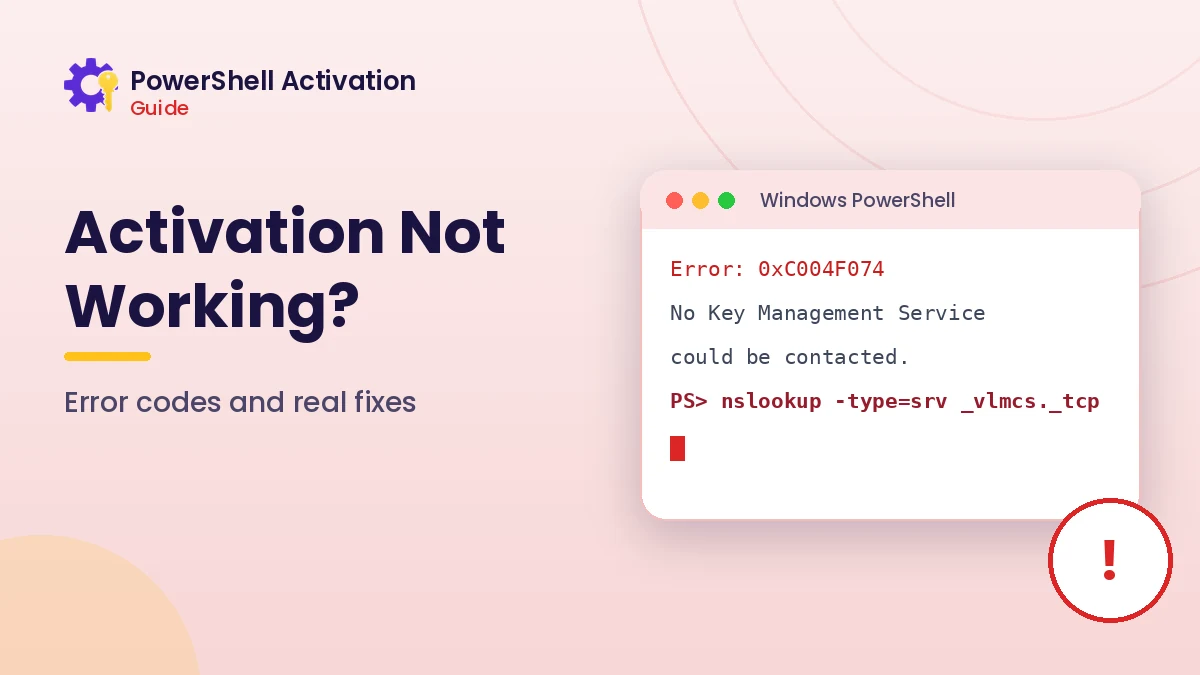
0xC004F074
No KMS host could be contacted. On a company device, connect to the corporate network or VPN and run slmgr /ato again. If the device is personal, it probably has a KMS client key it should not have; install your genuine retail key instead.
0x8007232B and 0x8007007B
These codes often appear when DNS cannot find the KMS host record. Administrators can confirm the record with the command below, and set a host manually with slmgr /skms if instructed.
nslookup -type=srv _vlmcs._tcpDigital License Errors
Error 0x803F7001 means Windows could not find a valid digital license or product key for the device. It is common after replacing the motherboard or installing a different edition than the one previously licensed.
Open Settings, go to the Activation page and run the troubleshooter. If the license was linked to a Microsoft account, choose the option that says you changed hardware recently and select the current device from the list.
When slmgr Itself Fails
Sometimes the script reports errors about licensing files or the service. Code 0xC004F012 indicates a license value was not found, which can point to damaged licensing data. System file repair often resolves it.
sfc /scannow
DISM /Online /Cleanup-Image /RestoreHealth
Restart after both tools finish, then run slmgr /dli to confirm the licensing service responds normally before attempting activation again.
Reading Errors from Remote Scripts
Activation problems sometimes start after running a script copied from a website with irm ... | iex. Such scripts can change keys, services or licensing files in ways that are hard to reverse. If this happened, compare the current output of slmgr /dlv with what you expect, and consider restoring a system restore point or reinstalling your genuine key.
The guide to iex in PowerShell explains why piping remote content into Invoke-Expression carries risk and how to inspect a script safely first.
Using the Error Lookup Tool
The homepage includes an error code lookup that explains the most common activation codes. Enter the value exactly as shown, including the 0x prefix, to see its meaning and the recommended next step.
The lookup runs entirely in your browser and only covers widely documented codes. For anything not listed, Microsoft support documentation is the authoritative source.
Collecting Details Before Asking for Help
When the error persists, gather a few details before contacting support or an administrator. A complete picture lets them identify the issue quickly instead of asking for the same checks again.
- The exact error code and message text
- Output of
slmgr /dlv - The installed edition and build number
- Recent changes such as hardware repairs, upgrades or new software
- Whether the device belongs to a person or an organization
Preventing Future Activation Problems
A few habits reduce the chance of activation trouble returning. Linking a Microsoft account to the digital license protects you after hardware repairs, and keeping a note of the original license channel helps when reinstalling the operating system.
Avoid tools and scripts that promise to unlock activation without a license. They frequently change licensing files in ways that later cause the same errors described in this guide, and they can introduce security risks that are far harder to repair than the original message.
Conclusion
PowerShell activation not working rarely needs guesswork. Confirm an elevated window and a working connection, match the error code to its meaning, and then apply the targeted fix, whether that is a correct key, a network connection to the KMS host or the Activation troubleshooter.
Use the error lookup on the homepage for quick answers, and return to the command reference when you need the exact switch for the next step.