Windows 10 PowerShell activation command usage centers on slmgr.vbs, the Software Licensing Management Tool that ships with Windows. Each switch performs one focused job, such as installing a key, requesting activation or printing license details. This reference groups the switches by purpose so you can find the right one quickly and understand what it changes.
How slmgr Runs Inside PowerShell
slmgr is a VBScript located in the System32 folder. Typing slmgr in PowerShell runs it through Windows Script Host, which displays results in a dialog window. For text output in the console, call it with cscript instead.
cscript //nologo $env:windir\System32\slmgr.vbs /dliCommands that change the license, such as installing or removing a key, require an elevated session. Read-only commands work without administrator rights in most cases, although running elevated avoids confusing permission errors.
Commands for Checking License Status
These switches only read information. They are safe to run at any time and are the first step in any activation check.
| Command | Purpose |
|---|---|
slmgr /dli | Displays license name, description, partial key and status |
slmgr /dlv | Shows detailed information including activation ID and rearm count |
slmgr /xpr | Reports whether activation is permanent or when it expires |
slmgr /dti | Displays the installation ID used for phone activation |
Commands for Installing and Activating
Installing a key and activating it are separate operations. This split lets administrators stage a key during deployment and activate it later when the device reaches the network.
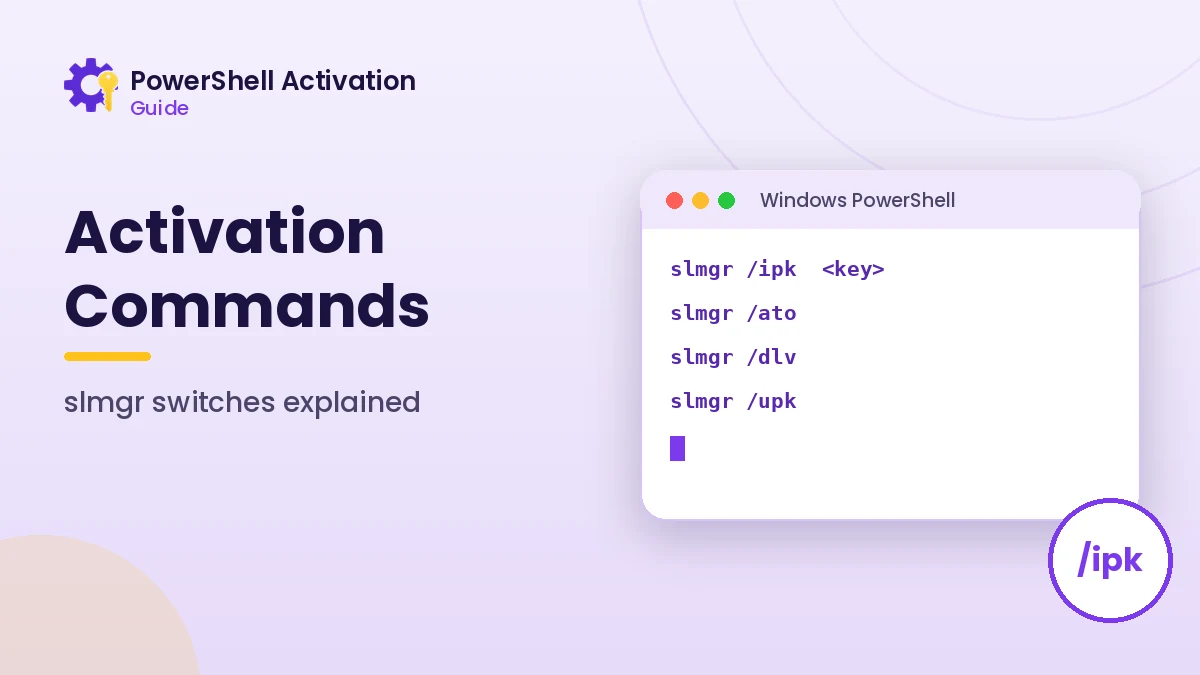
slmgr /ipk
Installs a product key and replaces the existing one. The key must match the installed edition and channel. Use your own genuine key in the standard five-group format.
slmgr /ipk XXXXX-XXXXX-XXXXX-XXXXX-XXXXXslmgr /ato
Requests activation using the installed key. For retail and MAK keys, it contacts Microsoft activation servers. For KMS client keys, it contacts the configured KMS host inside the organization.
slmgr /atp
Completes phone activation with the confirmation ID you receive after providing the installation ID. This is useful for computers that cannot reach the internet.
Commands for Removing Keys
Removing a key is common when retiring a device or transferring a retail license to new hardware. These switches change the license state, so record the current details with slmgr /dlv first.
slmgr /upkuninstalls the current product key, leaving Windows unlicensedslmgr /cpkyclears the key from the registry so it cannot be read by tools, while keeping it installedslmgr /rearmresets the licensing timers on evaluation or image-preparation scenarios, within the allowed count
Commands for Volume Activation with KMS
Organizations with a Key Management Service host can point clients to it manually. This is only relevant when your company operates a licensed KMS host and has instructed you to use it.
slmgr /skms kms.yourcompany.local:1688
slmgr /ato
slmgr /ckms   # clears the manual host so DNS discovery is used again
Port 1688 is the default KMS port. By default, clients find the host automatically through a DNS service record, so manual configuration is only needed when discovery is disabled or failing.
PowerShell-Native Alternatives
CIM classes expose the same licensing data as objects, which is ideal for scripts and reporting. The SoftwareLicensingProduct and SoftwareLicensingService classes are the most useful.
Get-CimInstance SoftwareLicensingProduct -Filter "PartialProductKey IS NOT NULL" |
  Select-Object Name, LicenseStatus, GracePeriodRemaining
GracePeriodRemaining is reported in minutes. A value of 0 together with LicenseStatus 1 indicates a permanent activation, while a positive value means a time-limited state such as KMS activation, which renews automatically.
Choosing the Right Command for the Task
Picking a switch is easier when you start from the goal rather than the command list. The pairs below match common goals with the switch that handles them, so you avoid running more commands than necessary.
- Is Windows activated? Use
slmgr /xpr - Which key type is installed? Use
slmgr /dliand read the Description line - Need support details? Use
slmgr /dlvfor activation and installation IDs - Bought a new key? Use
slmgr /ipkfollowed byslmgr /ato - Retiring the device? Use
slmgr /upkand thenslmgr /cpky
Running Commands Without Popups in Scripts
Dialog windows interrupt automated tasks, so scripts should always call slmgr through cscript. Capturing the output into a variable lets you search it for the status line and decide what to do next.
$out = cscript //nologo $env:windir\System32\slmgr.vbs /dli
$out | Select-String 'License Status'
Select-String returns only the matching line, which makes the result easy to log or show in a report. The same method works for /xpr when you need the expiry text.
Switches That Need Extra Care
Some switches are easy to misuse because their effects are not obvious from the name. The rearm switch, for example, resets licensing timers only a limited number of times, and the remaining count is shown in the /dlv output. Using it repeatedly on a normal installation offers no benefit and can leave the system in an awkward state.
Similarly, /cpky does not deactivate Windows, it only removes the key from the registry. That protects the key on shared or donated devices but does not replace a proper uninstall with /upk when you want to move a retail license elsewhere.
| Switch | Changes license? | Needs admin? |
|---|---|---|
/dli, /dlv, /xpr | No | Usually not |
/ipk, /ato | Yes | Yes |
/upk, /cpky | Yes | Yes |
/skms, /ckms | Yes, KMS settings | Yes |
Frequently Asked Questions
What is the difference between /dli and /dlv?
Both read license information. /dli shows a short summary, while /dlv adds the activation ID, installation ID, rearm count and other technical fields.
Can I run slmgr on a remote computer?
slmgr accepts a computer name, user name and password before the switch. Using PowerShell remoting with Invoke-Command is often simpler on modern networks.
Does /upk deactivate Windows immediately?
Yes. After the key is removed, Windows enters an unlicensed state and shows activation reminders until a valid key or digital license is applied.
Conclusion
Windows 10 PowerShell activation command knowledge comes down to a handful of slmgr switches and two CIM classes. Status switches are safe to run anytime, while install, activate and remove switches need administrator rights and a genuine license.
Try the interactive command builder on the homepage to assemble the exact command you need, then check the command line basics guide for more context.