Windows PowerShell command knowledge goes a long way in license management. Beyond slmgr, PowerShell includes cmdlets that reveal the edition, build, firmware key, licensing service state and activation details, all as objects you can filter and export. This guide collects the commands that are genuinely useful when you need to understand or document the license on a Windows device.
Identifying the Windows Edition and Build
Every activation question starts with knowing what is installed. Edition determines which keys are valid, and the build number helps when comparing behavior across devices.
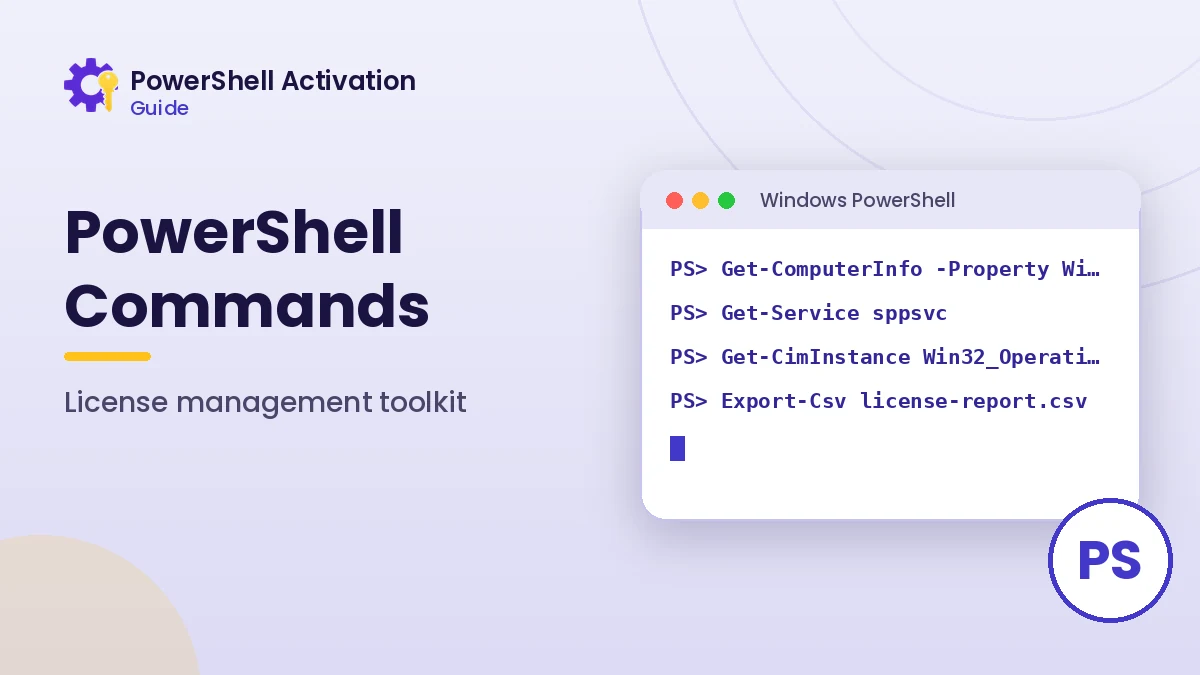
Get-ComputerInfo -Property WindowsProductName, WindowsEditionId, OsBuildNumber
(Get-CimInstance Win32_OperatingSystem) | Select-Object Caption, Version, BuildNumber
Get-ComputerInfo can take a few seconds because it gathers a lot of data. Requesting only the properties you need keeps it quick and the output easy to read.
Checking the Licensing Service
The Software Protection service, named sppsvc, handles licensing tasks. If it cannot start, every activation command fails, so checking it early saves time.
Get-Service -Name sppsvc | Select-Object Status, StartType
Start-Service -Name sppsvc   # requires an elevated session
It is normal for the service to show as stopped when idle. Windows starts it automatically when a licensing task runs, and stops it again later.
Reading Activation Status as Objects
The SoftwareLicensingProduct class gives the most complete picture of activation. Filtering on Windows products with an installed partial key focuses the output on what matters.
Get-CimInstance SoftwareLicensingProduct -Filter "ApplicationID='55c92734-d682-4d71-983e-d6ec3f16059f' AND PartialProductKey IS NOT NULL" |
  Select-Object Name, Description, LicenseStatus
The ApplicationID in the filter identifies Windows, so Office products are excluded from this query. Removing that condition shows Office licensing products as well when they use the same service.
Useful Commands at a Glance
The table below summarizes commands that help with day-to-day license management. Each one is read-only unless noted.
| Command | What it tells you |
|---|---|
(Get-CimInstance Win32_OperatingSystem).Caption | Installed Windows edition |
(Get-CimInstance SoftwareLicensingService).OA3xOriginalProductKeyDescription | Edition of the firmware key, if one exists |
Get-Service sppsvc | State of the licensing service |
cscript //nologo $env:windir\System32\slmgr.vbs /xpr | Permanent or time-limited activation |
Get-WinEvent -LogName Application -MaxEvents 50 | Recent application events, including licensing entries |
Finding Licensing Events in the Event Log
Activation attempts write events to the Application log under the Security-SPP source. These entries help explain intermittent problems, such as a KMS client that occasionally fails to renew.
Get-WinEvent -FilterHashtable @{LogName='Application'; ProviderName='Microsoft-Windows-Security-SPP'} -MaxEvents 20 |
  Select-Object TimeCreated, Id, Message
Look for entries near the time of a failed attempt. The message text often includes the same error code shown by slmgr, along with extra context about the cause.
Exporting a License Report
Documentation is easier when results are saved. PowerShell can combine several queries into one record and export it to CSV for a spreadsheet or ticket.
$os  = Get-CimInstance Win32_OperatingSystem
$lic = Get-CimInstance SoftwareLicensingProduct -Filter "PartialProductKey IS NOT NULL" | Select-Object -First 1
[pscustomobject]@{
  Computer = $env:COMPUTERNAME
  Edition  = $os.Caption
  Build    = $os.BuildNumber
  License  = $lic.Description
  Status   = $lic.LicenseStatus
} | Export-Csv .\license-report.csv -NoTypeInformation
Running the Report on Several Devices
Wrap the same logic in Invoke-Command -ComputerName PC1, PC2 -ScriptBlock { ... } when PowerShell remoting is enabled. Each device returns its own record, which you can collect into a single file.
Commands That Change the License
A few commands modify licensing and should be used carefully. They require administrator rights and a genuine key or organizational instruction.
slmgr /ipkinstalls a product keyslmgr /atorequests activationslmgr /upkremoves the installed keyslmgr /skmssets a KMS host provided by your organization
Checking the Activation Expiry Date
Time-limited activations, such as KMS clients, renew automatically, yet it is useful to know when the current period ends. The GracePeriodRemaining property reports the remaining time in minutes, which converts easily into days.
Get-CimInstance SoftwareLicensingProduct -Filter "PartialProductKey IS NOT NULL" |
  Select-Object Name, @{n='DaysLeft';e={[math]::Round($_.GracePeriodRemaining / 1440, 1)}}
A value of zero with a licensed status means the activation is permanent. A positive value on a company device simply shows when the next automatic renewal is due.
Comparing Edition and Firmware Key
A frequent cause of activation failure is an installed edition that differs from the firmware key edition. Comparing the two values side by side shows the mismatch immediately.
$svc = Get-CimInstance SoftwareLicensingService
"Installed: " + (Get-CimInstance Win32_OperatingSystem).Caption
"Firmware : " + $svc.OA3xOriginalProductKeyDescription
Organizing Commands into a Toolkit
Keeping license commands in a single reviewed script saves time and reduces typing mistakes. Group them into sections for identification, status and reporting, and add comments describing what each part does so others can follow it easily.
Store the script somewhere central, such as a shared folder for your team, and update it when you learn a better approach. A small, well-documented toolkit beats a long list of one-liners copied from different sources that nobody has checked.
- Identification: edition, build and firmware key description
- Status: license channel, status and grace period
- Health: licensing service state and recent Security-SPP events
- Reporting: CSV export with computer name and timestamp
Testing Before Sharing
Run the toolkit on a test device before sharing it widely. Confirm every query returns sensible values and that nothing in the script changes the license unexpectedly.
Reading Partial Product Keys
The PartialProductKey property shows the last five characters of the installed key. It is enough to confirm which key is in use when comparing against a purchase record or license list, without exposing the full key. Including it in reports helps teams match devices to the licenses they bought, especially in small offices that track retail keys manually.
Get-CimInstance SoftwareLicensingProduct -Filter "PartialProductKey IS NOT NULL" |
  Select-Object Name, PartialProductKey
Frequently Asked Questions
Which Windows PowerShell command shows the edition fastest?
(Get-CimInstance Win32_OperatingSystem).Caption returns the edition name almost instantly and works on every supported Windows version.
Can I see the full product key with PowerShell?
Windows stores only a partial key in licensing data for installed retail keys. A firmware key can be read through the OA3xOriginalProductKey property on supported devices.
Do these commands work in PowerShell 7?
Yes. CIM cmdlets, Get-Service and Get-WinEvent work in both Windows PowerShell 5.1 and PowerShell 7 on Windows.
Conclusion
Windows PowerShell command tools turn license management into a quick, repeatable task. Edition checks, service checks, CIM status queries, event log filters and CSV exports give a complete and documented view of activation on any device.
Download the ready-made license check script from the homepage to run the core read-only checks in one step.