PowerShell activation Windows 10 refers to using an elevated PowerShell window and the built-in Software Licensing Management Tool to view, install and activate a genuine Windows license. Instead of clicking through several Settings pages, you can read the exact license channel, partial product key and activation state in seconds, which is especially useful when you manage more than one computer.
Why Use PowerShell for Windows 10 Activation
The graphical Activation page in Settings shows a short summary, while the command line exposes far more detail. With a single command you can see whether the system uses a digital license, a retail key, an OEM key stored in firmware or a volume license from your organization. That detail matters when you troubleshoot an activation message after a hardware change or a clean installation.
PowerShell also makes the process repeatable. The same commands work on every Windows 10 edition, they can be pasted into a remote session, and the output can be saved as a record for support teams. Everything described in this guide uses tools that already ship with Windows, so nothing extra needs to be installed.
- Faster access to license details than the Settings app
- Consistent commands across Home, Pro, Education and Enterprise
- Clear error codes that point to the real cause of a failure
- Easy documentation of the activation state for each device
Opening an Elevated PowerShell Window
Reading license information works in a normal window, but installing a key or triggering activation needs administrator rights. Right-click the Start button and choose Windows PowerShell (Admin), or search for PowerShell, right-click it and select Run as administrator. Accept the User Account Control prompt to continue.
The title bar should start with the word Administrator. If it does not, commands such as slmgr /ipk will return an access denied message, usually shown as error 0x80070005.
Checking the Current Activation Status
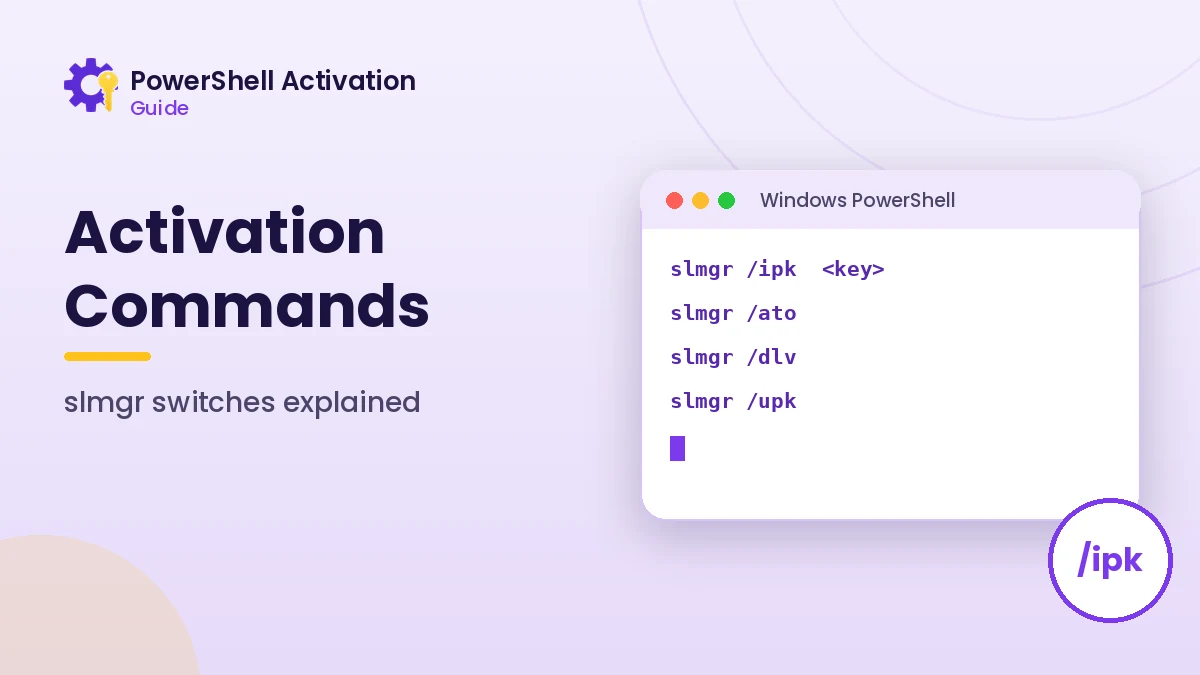
Three slmgr switches cover most status questions. Each one opens a small Windows Script Host dialog with the result, so keep an eye on the taskbar if nothing seems to happen.
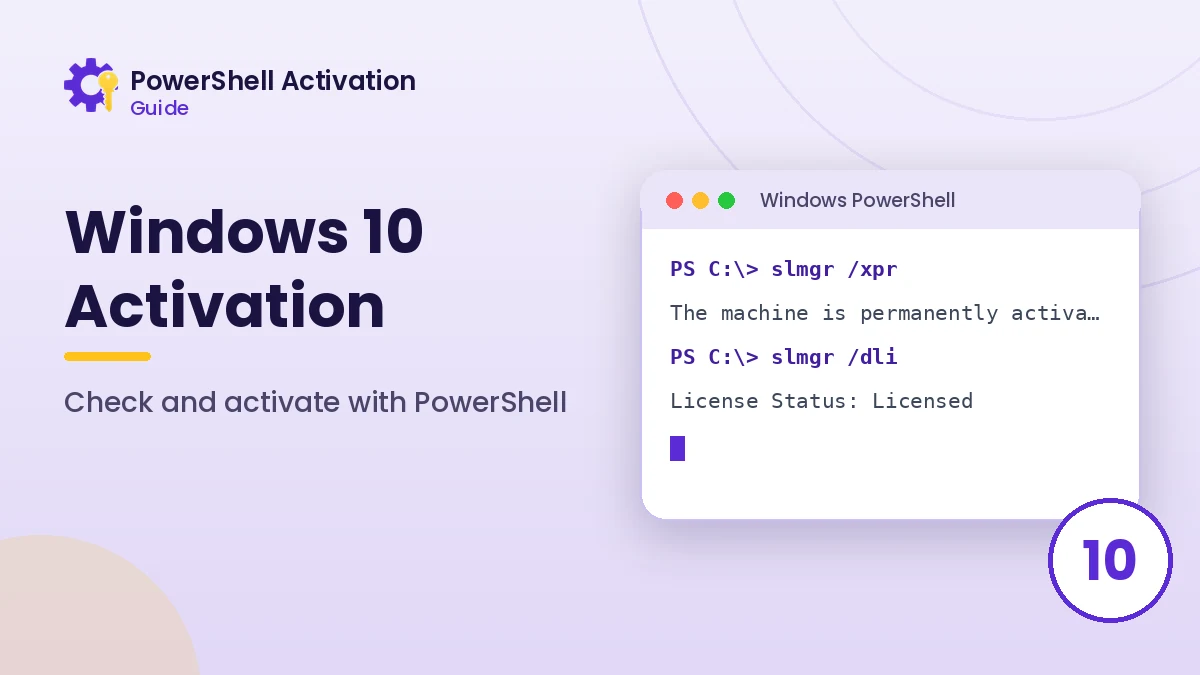
slmgr /xpr   # shows whether Windows is permanently activated
slmgr /dli   # basic license information and partial key
slmgr /dlv   # detailed license information, including activation ID
Reading the Output Correctly
Look for the License Status line. Licensed means activation is complete, while Notification or Unlicensed means Windows still needs a valid key or digital license. The Description line reveals the channel, such as RETAIL, OEM_DM or VOLUME_KMSCLIENT, which tells you which activation path applies to the device.
| Channel shown | What it usually means |
|---|---|
| RETAIL | A key bought separately or a digital license linked to an account |
| OEM_DM | A key embedded in the device firmware by the manufacturer |
| VOLUME_MAK | A Multiple Activation Key issued to an organization |
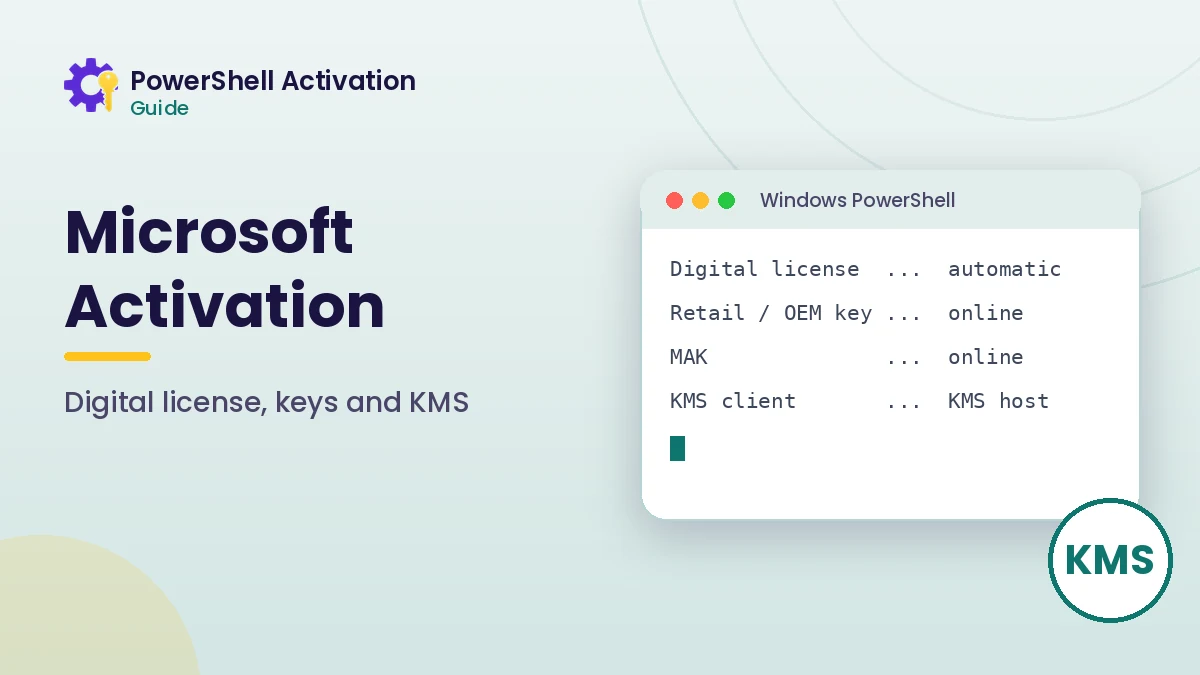
| VOLUME_KMSCLIENT | A client that expects a corporate KMS host |
Finding a Key Stored in Firmware
Many laptops and desktops sold with Windows 10 have the license key written into UEFI firmware. Windows normally reads it automatically, yet you can confirm it is present with a CIM query in PowerShell.
(Get-CimInstance -ClassName SoftwareLicensingService).OA3xOriginalProductKeyAn empty result means no firmware key exists, which is normal for custom-built computers. In that case the license comes from a retail key, a digital license tied to your Microsoft account or a volume agreement.
Installing a Genuine Product Key
When you have purchased a legitimate key, install it and request activation with two commands. Replace the placeholder with your own 25-character key, keeping the hyphens.
slmgr /ipk XXXXX-XXXXX-XXXXX-XXXXX-XXXXX
slmgr /ato
The first command replaces the current key, and the second contacts Microsoft activation servers. A short success dialog confirms the result. If you see an error code instead, note it exactly, because each code points to a specific cause such as a key for the wrong edition.
Matching the Key to the Edition
A Windows 10 Home key will not activate Windows 10 Pro, and the reverse is also true. Check the edition with (Get-CimInstance Win32_OperatingSystem).Caption before entering a key. Upgrading from Home to Pro with a Pro key is handled through Settings, which changes the edition and activates it in one flow.
Windows 10 Support Status and Licensing
Microsoft ended mainstream support for Windows 10 on October 14, 2025. Activation still works for existing genuine licenses, but security updates after that date require the Extended Security Updates program or an upgrade to Windows 11. Keeping the license active is still important because unactivated systems show reminders and limit personalization options.
If you plan to move to Windows 11 on eligible hardware, an activated Windows 10 license generally carries over as a digital license. Checking activation with PowerShell before upgrading helps avoid surprises later.
Keeping a Record of Each Device
Saving the activation state takes a few seconds and helps later. Copy the output of slmgr /dlv into a text file or ticket, together with the edition and the date, so you can compare it after updates, repairs or a reinstall.
Administrators who manage several computers often export the same details with a CIM query. The homepage download section offers a read-only script that collects edition, license channel and status into one readable summary.
Frequently Asked Questions
Does PowerShell activation work on Windows 10 Home?
Yes. The slmgr tool and CIM licensing classes are part of every Windows 10 edition, including Home. Administrator rights are still required to change the key or trigger activation.
Why does slmgr open a popup instead of printing text?
slmgr is a VBScript that runs through Windows Script Host. Running cscript //nologo C:\Windows\System32\slmgr.vbs /dli prints the same information directly in the console instead.
Is it safe to run these commands?
The status commands only read information. Installing a key changes the license, so only use keys you obtained legitimately and keep a note of the previous key shown by slmgr /dli.
Conclusion
PowerShell activation Windows 10 gives you a precise view of the license on any device, from the activation channel to the exact error behind a failed attempt. With slmgr status switches, a firmware key query and a genuine product key, you can confirm or complete activation without guesswork.
Keep the commands in this guide handy, run status checks before major changes, and refer to the troubleshooting guide whenever an error code appears.