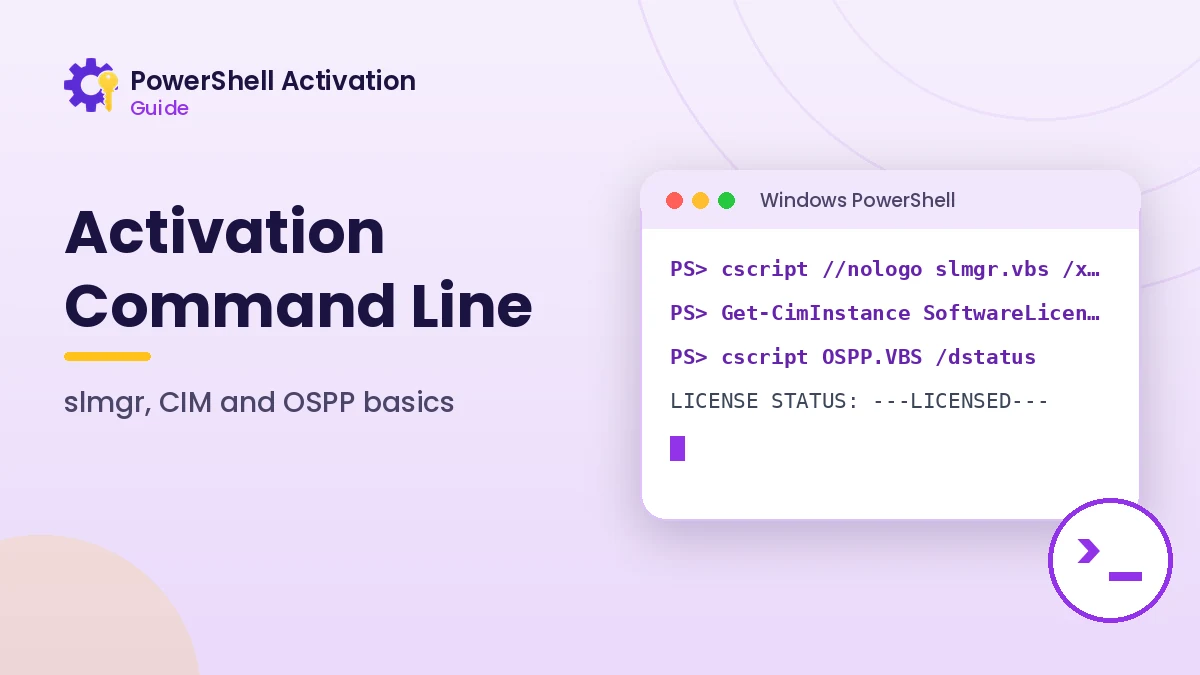
PowerShell activation command line work brings together three tools: slmgr for Windows, CIM licensing classes for structured data, and OSPP.VBS for perpetual Office versions. Learning how they fit together lets you check any license in a few seconds and build simple scripts that report activation across devices.
Preparing the Command Line Environment
Start with an elevated session so every command can run without permission errors. On Windows 11, use Terminal (Admin) from the Start menu; on Windows 10, use Windows PowerShell (Admin). Both open PowerShell with administrator rights after you confirm the prompt.
Check the PowerShell version with $PSVersionTable.PSVersion. Windows PowerShell 5.1 is included with Windows 10 and 11, and every command in this guide works there as well as in PowerShell 7.
Running slmgr with Console Output
By default slmgr shows results in a popup dialog. When you work at the command line or capture output in a script, cscript prints the text directly in the console window instead.
$slmgr = "$env:windir\System32\slmgr.vbs"
cscript //nologo $slmgr /xpr
cscript //nologo $slmgr /dli
Storing the path in a variable keeps longer scripts tidy. The //nologo switch removes the Windows Script Host banner, so the output contains only license information.
Querying Licensing Data with CIM
CIM queries return objects instead of text, which makes them easier to filter and export. The SoftwareLicensingService class holds service-wide details, while SoftwareLicensingProduct describes each licensing product.
Service Details
Get-CimInstance SoftwareLicensingService |
  Select-Object Version, KeyManagementServiceMachine, OA3xOriginalProductKeyDescription
The OA3x fields show whether a firmware key exists and what edition it belongs to. The KeyManagementServiceMachine field shows a manually configured KMS host, when your organization uses one.
Product Details
Get-CimInstance SoftwareLicensingProduct -Filter "PartialProductKey IS NOT NULL" |
  Select-Object Name, LicenseFamily, LicenseStatus, PartialProductKey
Building a Simple Status Report
Combining these queries produces a readable summary that can be saved for documentation. Converting the numeric status into words makes the report understandable for anyone reviewing it.
$map = @{0='Unlicensed';1='Licensed';2='OOB Grace';3='OOT Grace';4='Non-Genuine Grace';5='Notification';6='Extended Grace'}
Get-CimInstance SoftwareLicensingProduct -Filter "PartialProductKey IS NOT NULL" |
  Select-Object Name, @{n='Status';e={$map[[int]$_.LicenseStatus]}}, PartialProductKey |
  Format-Table -AutoSize
Adding | Export-Csv license-report.csv -NoTypeInformation at the end saves the result to a file. The download section on the homepage provides a ready-made read-only script built on the same approach.
Checking Office from the Command Line
Perpetual Office versions include OSPP.VBS in the Office installation folder. The exact path depends on whether 64-bit or 32-bit Office is installed.
| Office installation | Typical OSPP.VBS folder |
|---|---|
| 64-bit Office on 64-bit Windows | C:\Program Files\Microsoft Office\Office16 |
| 32-bit Office on 64-bit Windows | C:\Program Files (x86)\Microsoft Office\Office16 |
cscript "C:\Program Files\Microsoft Office\Office16\OSPP.VBS" /dstatusThe Office16 folder is used by Office 2016 and later perpetual versions. Microsoft 365 subscriptions activate by account sign-in, so OSPP output for them is limited.
Good Habits for Command Line Activation Work
Small habits prevent most mistakes. They also make it easier to explain what happened if you need help from support.
- Run read-only status commands before making any change
- Save the output of
slmgr /dlvbefore replacing or removing a key - Copy error codes exactly, including the 0x prefix
- Only use product keys obtained from Microsoft, a retailer or your organization
- Avoid piping remote scripts into
iexwithout reading them first
Understanding Elevated and Standard Sessions
Windows separates standard and administrator rights even for administrator accounts. A normal PowerShell window runs with limited rights, and licensing changes require the elevated token granted through the User Account Control prompt.
You can check the current session from the command line. The result is True in an elevated window and False in a standard one.
([Security.Principal.WindowsPrincipal][Security.Principal.WindowsIdentity]::GetCurrent()).IsInRole([Security.Principal.WindowsBuiltInRole]::Administrator)Capturing Output for Support
Support teams usually ask for the same few details: edition, build, license channel, status and any error code. Saving them in one file with a timestamp makes a support request much faster and avoids repeated back-and-forth.
Start-Transcript records everything typed and shown in the session to a text file, and Stop-Transcript ends the recording. It is a simple way to document a full troubleshooting session without copying output manually.
Keeping Sensitive Values Private
Partial keys are generally safe to share, but full keys are not. Before sending a transcript, remove any complete product keys and confirm nothing else private appears in the file.
Combining Commands into a Routine
A consistent routine makes activation checks predictable. Start by confirming the session is elevated, read the edition, check the Windows license, then check Office if it is installed. Running the steps in the same order every time makes differences between devices stand out quickly.
Save the routine as a .ps1 file once you are happy with it. A reviewed local script is far safer than retyping commands from memory or copying one-liners from unknown sources, and it can be shared with colleagues who need the same checks.
| Step | Command |
|---|---|
| Session check | IsInRole(... Administrator) |
| Edition | (Get-CimInstance Win32_OperatingSystem).Caption |
| Windows status | cscript //nologo slmgr.vbs /xpr |
| Office status | cscript //nologo OSPP.VBS /dstatus |
Command Line Tools Compared
Each tool has a clear strength. slmgr is the simplest way to change a Windows license, CIM queries are best for reports and filtering, and OSPP.VBS is the dedicated tool for perpetual Office. Knowing which one fits a task keeps scripts short and avoids running the same check twice.
- slmgr.vbs — install keys, activate, remove keys, set KMS hosts
- CIM classes — structured status, grace periods, firmware key details
- OSPP.VBS — Office status, key installation and activation
Frequently Asked Questions
Is slmgr a PowerShell cmdlet?
No. slmgr is a VBScript that PowerShell can launch. CIM licensing classes are the PowerShell-native way to read the same information.
Can I activate Windows with only CIM commands?
The SoftwareLicensingService class exposes methods such as InstallProductKey, but slmgr remains the clearer and better documented option for most people.
Why does OSPP.VBS say file not found?
The path is usually wrong for your Office architecture. Check both Program Files folders, or confirm that a perpetual Office version is installed.
Conclusion
PowerShell activation command line skills rest on three tools: slmgr for Windows actions, CIM classes for structured reporting and OSPP.VBS for perpetual Office licenses. Used together, they cover checking, documenting and completing genuine activation.
For deeper explanations of each slmgr switch, continue with the Windows 10 activation command reference.