PowerShell activation for Microsoft Office is handled by OSPP.VBS, the Office Software Protection Platform script included with perpetual and volume versions of Office. From an elevated PowerShell window you can check the license status, install a genuine key and request activation, which is faster than opening each Office app to find the Account page.
Which Office Versions Use OSPP.VBS
OSPP.VBS applies to perpetual Office products such as Office 2016, 2019, 2021 and 2024, including their volume licensed editions. These versions store the script in the Office16 folder. Microsoft 365 apps work differently, activating through the account that holds the subscription.
| Office product | How it activates | OSPP.VBS useful? |
|---|---|---|
| Office 2016 to 2024 retail | Product key or account linked purchase | Yes, for status checks |
| Office LTSC and volume editions | MAK or organization KMS | Yes, fully |
| Microsoft 365 apps | Account sign-in with a subscription | Limited |
Locating OSPP.VBS
The script sits inside the Office installation folder, and the path depends on whether Office is 64-bit or 32-bit. Test both paths quickly with Test-Path.
Test-Path "C:\Program Files\Microsoft Office\Office16\OSPP.VBS"
Test-Path "C:\Program Files (x86)\Microsoft Office\Office16\OSPP.VBS"
The path that returns True is the one to use. Changing into that folder with Set-Location keeps later commands short and readable.
Checking Office License Status
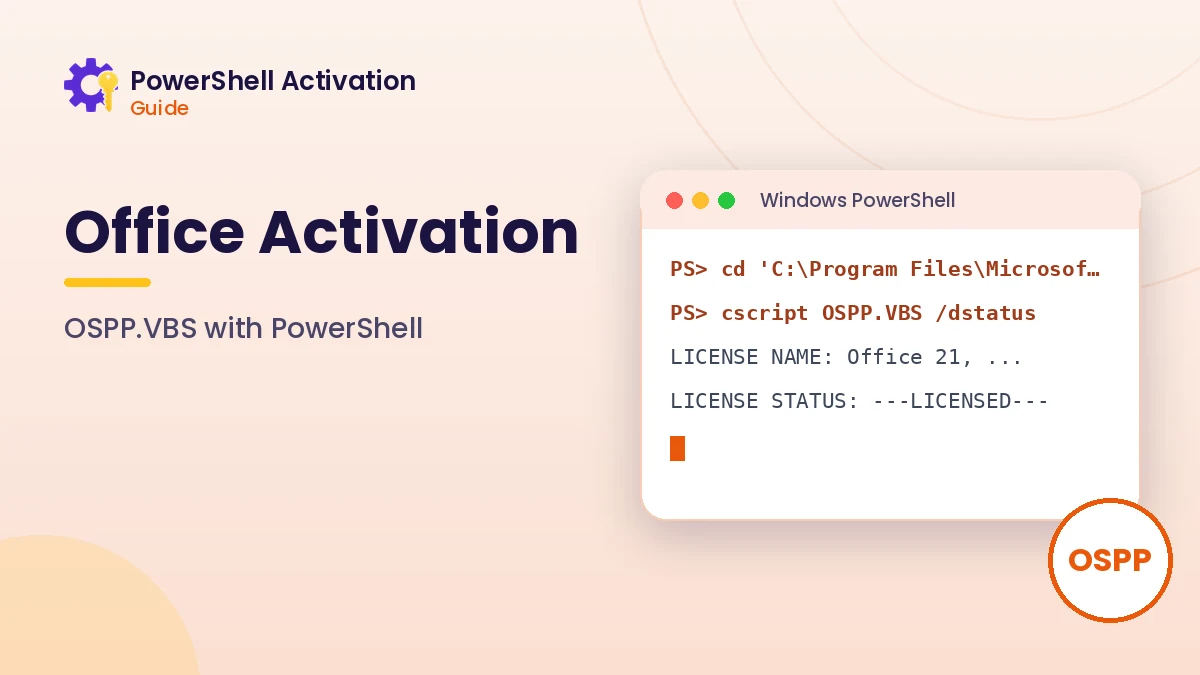
The /dstatus switch lists each installed Office license with its name, description, status and the last five characters of the key. It only reads information, so it is safe to run at any time.
Set-Location "C:\Program Files\Microsoft Office\Office16"
cscript //nologo OSPP.VBS /dstatus
Reading the Result
LICENSE STATUS: ---LICENSED--- confirms activation. Other values, such as ---NOTIFICATIONS--- or ---OOB_GRACE---, mean Office still needs a valid license. The LICENSE NAME line identifies the product and channel, such as Retail, MAK or KMS client.
Installing and Activating a Genuine Key
When you have a legitimate key for the installed Office product, two commands complete the process. The key must match both the product and the channel, so a retail key will not activate a volume installation.
cscript //nologo OSPP.VBS /inpkey:XXXXX-XXXXX-XXXXX-XXXXX-XXXXX
cscript //nologo OSPP.VBS /act
A message stating that product activation was successful confirms the result. If an error appears, run /dstatus again to check whether an older or mismatched key is still installed.
Removing an Old Key
Leftover keys from trial or previous installations can cause confusion. Remove one with /unpkey: followed by the last five characters shown in the status output, then install the correct key.
Volume Activation for Organizations
Organizations using KMS for Office can point clients to their host when DNS discovery is not available. Use these switches only with a host your organization operates and has told you to use.
cscript //nologo OSPP.VBS /sethst:kms.yourcompany.local
cscript //nologo OSPP.VBS /setprt:1688
cscript //nologo OSPP.VBS /act
Office KMS activations renew automatically while the device can reach the host, in the same way as Windows KMS clients.
Microsoft 365 Activation
Microsoft 365 apps check the subscription linked to the signed-in account. When activation problems occur, the usual fixes are signing out and back in from File, Account, confirming the subscription is active, and checking that the account is assigned a license by the organization.
- Sign in with the account that owns the subscription
- Check the subscription status on the Microsoft account portal
- Close all Office apps before signing in again
- Ask the administrator to confirm a license is assigned on work accounts
Checking Office Licenses on Several PCs
OSPP.VBS accepts a computer name, which lets administrators check remote machines from one session. For larger groups, PowerShell remoting runs the same status command on each device and returns the results to one place.
Invoke-Command -ComputerName PC1, PC2 -ScriptBlock {
  cscript //nologo "C:\Program Files\Microsoft Office\Office16\OSPP.VBS" /dstatus
}
Adjust the path for 32-bit Office where needed. Saving the combined output gives a simple record of which devices are licensed and which still need attention.
Common Office Activation Messages
A few messages appear regularly when Office activation does not complete. Knowing what they mean helps you choose the next step quickly.
- Product Activation Failed in the title bar usually means no valid license is installed
- Unlicensed Product appears when a trial ended or a key was removed
- There are problems with your account points to a Microsoft 365 subscription or sign-in issue
Checking Which Office Is Installed
Choosing the right activation path depends on the product, so identifying Office correctly comes first. The registry lists installed Click-to-Run products, and PowerShell can read that information without opening any Office app.
Get-ItemProperty "HKLM:\SOFTWARE\Microsoft\Office\ClickToRun\Configuration" |
  Select-Object ProductReleaseIds, Platform, VersionToReport
ProductReleaseIds names the installed products, such as a Microsoft 365 suite or a perpetual 2021 edition, and Platform shows x64 or x86. That tells you which OSPP.VBS folder to use and whether activation happens by key or by account.
Office Activation Checklist
Working through a short checklist resolves most Office activation questions. It also keeps you from mixing up product keys, channels and accounts when several Office versions have been installed on the same computer over time.
- Identify the product and platform from the ClickToRun configuration
- Locate OSPP.VBS in the matching Program Files folder
- Run /dstatus and note any old or trial keys
- Remove stale keys, install the genuine key and activate
Frequently Asked Questions
Why is OSPP.VBS missing on my PC?
Some Click-to-Run installations of Microsoft 365 handle licensing differently. Confirm the Office version from File, Account, and check both Program Files folders.
Can I use one key for Word and Excel separately?
A suite key activates the products included in that suite. Standalone apps use their own keys matching that specific product.
Is Ohook a supported way to activate Office?
No. Ohook is a third-party method from community activation scripts and is not provided by Microsoft. Supported activation uses a purchased key, a subscription or organization volume licensing.
Conclusion
PowerShell activation for Microsoft Office relies on OSPP.VBS for perpetual and volume editions and on account sign-in for Microsoft 365. Checking status with /dstatus, installing a genuine key with /inpkey and activating with /act covers most needs.
For Windows licensing on the same device, continue with the Windows 11 activation guide or the Windows 10 activation guide.